









Cómo solucionar el error de activación de Office

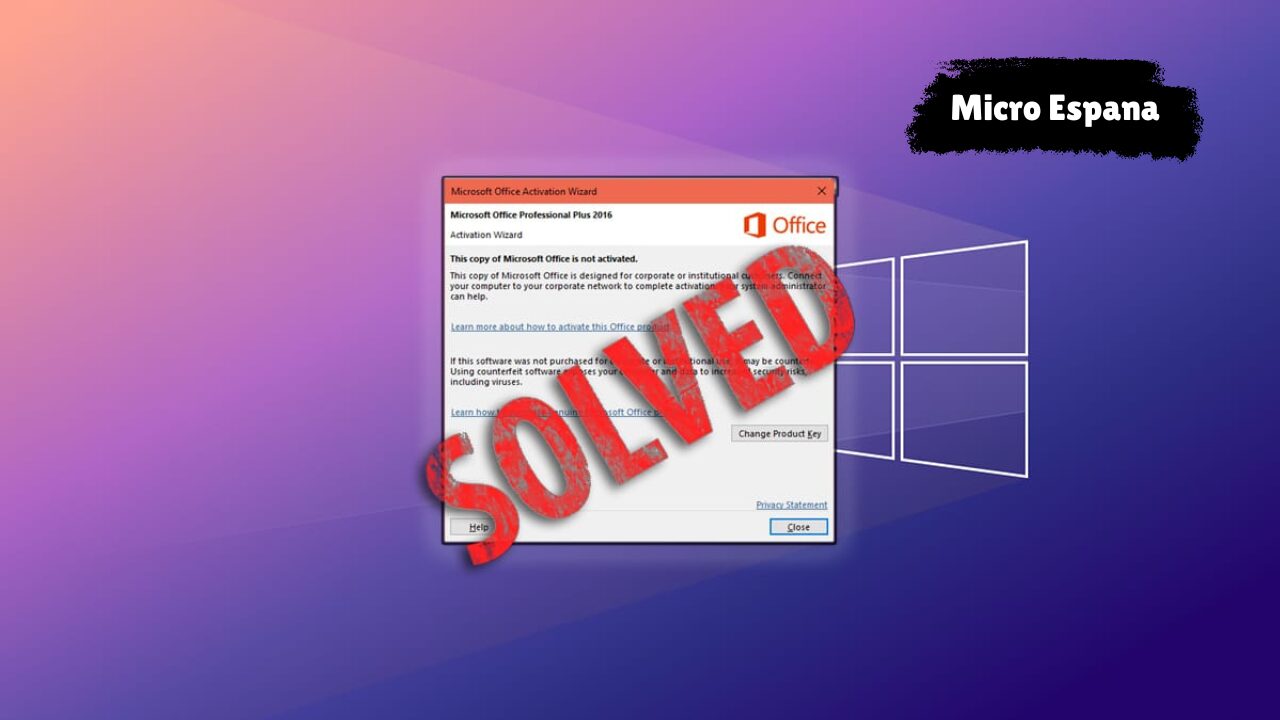
El error de activación de Microsoft Office es uno de los problemas más comunes que enfrentan los usuarios en Windows y macOS. Puede aparecer después de instalar Office, cambiar de equipo, actualizar el sistema operativo o renovar una licencia.
En la mayoría de los casos, este error impide usar Word, Excel, PowerPoint u Outlook con normalidad. Microsoft Defender Security Features (2026 Update)
En esta guía completa aprenderás cómo solucionar el error de activación de Office paso a paso, entendiendo sus causas más frecuentes y aplicando soluciones prácticas que funcionan en 2026.
Qué es el error de activación de Office
El error de activación de Office ocurre cuando Microsoft no puede verificar correctamente la licencia del producto. Cuando esto sucede, Office entra en modo de funcionalidad reducida o muestra mensajes constantes solicitando activación.
Este problema puede afectar tanto a versiones perpetuas como Office 2019, Office 2021 u Office 2024, como a suscripciones de Microsoft 365.
Mensajes comunes de error de activación
Algunos de los mensajes más habituales incluyen:
- “Office no se pudo activar”
- “Producto sin licencia”
- “Error de activación: código 0xC004F074”
- “Se ha alcanzado el límite de activaciones”
- “La clave de producto no es válida”
Cada mensaje puede tener una causa distinta, pero muchas soluciones son similares.
Principales causas del error de activación
Antes de aplicar soluciones, es importante entender por qué ocurre el problema. Las causas más frecuentes incluyen:
- Clave de producto incorrecta o ya utilizada
- Conexión a Internet inestable
- Fecha y hora del sistema incorrectas
- Conflictos con versiones anteriores de Office
- Cambios recientes de hardware
- Problemas con la cuenta de Microsoft
- Uso de licencias no originales o caducadas
Tabla de errores comunes y soluciones rápidas
| Error de activación | Causa probable | Solución recomendada |
|---|---|---|
| Producto sin licencia | Sesión no iniciada | Iniciar sesión con cuenta Microsoft |
| 0xC004F074 | Servidor no accesible | Verificar conexión a Internet |
| Clave no válida | Clave incorrecta | Revisar clave de producto |
| Activaciones agotadas | Límite excedido | Desactivar en otros dispositivos |
| Office no se activa | Archivos dañados | Reparar Office |
Solución 1: Verificar la conexión a Internet
Office necesita conectarse a los servidores de Microsoft para validar la licencia. Asegúrate de que tu conexión sea estable y sin restricciones.
Evita redes públicas con firewalls estrictos y prueba reiniciando el router si es necesario.
Solución 2: Comprobar fecha y hora del sistema
Una fecha u hora incorrecta puede impedir la activación. Verifica que la configuración del sistema esté sincronizada automáticamente.
En Windows, activa la opción de ajuste automático de hora e intenta activar Office nuevamente.
Solución 3: Iniciar sesión con la cuenta correcta de Microsoft
Si usas Microsoft 365 o una licencia vinculada a cuenta, debes iniciar sesión con el correo correcto.
Abre cualquier aplicación de Office, ve a Cuenta y comprueba que la cuenta activa sea la que compró la licencia.
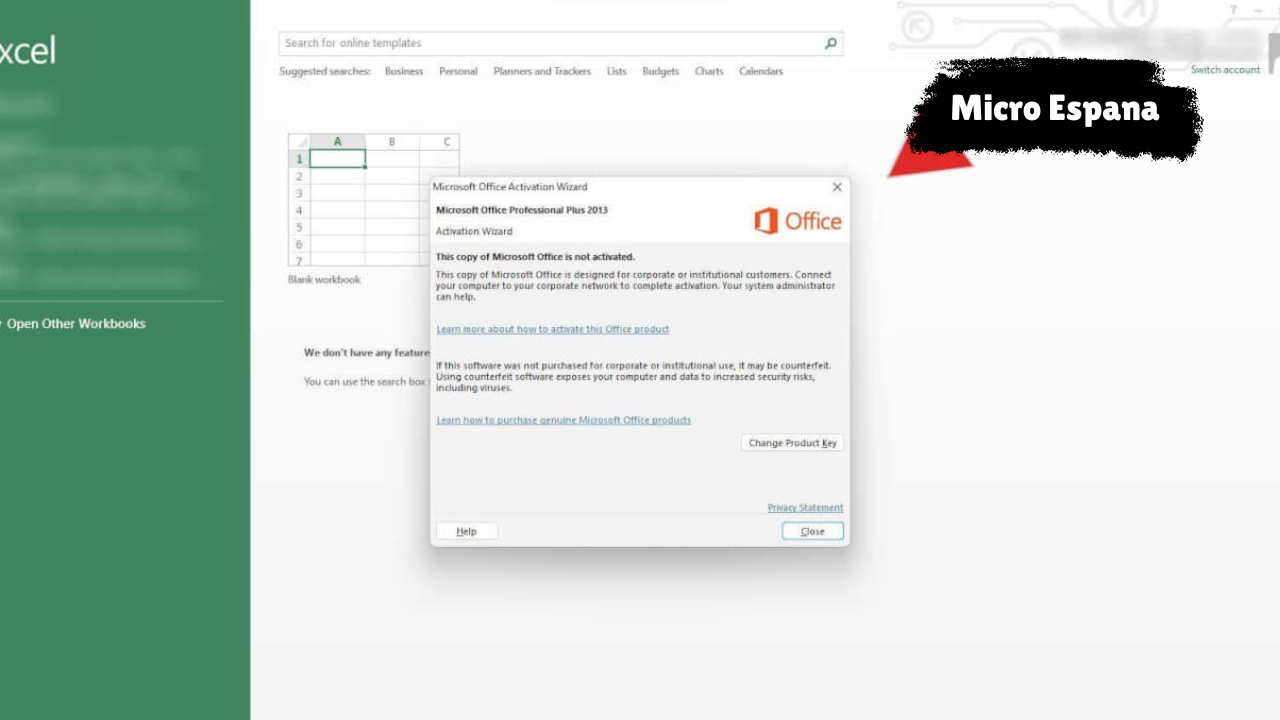
Solución 4: Revisar la clave de producto
Si usas una clave de 25 caracteres, asegúrate de haberla ingresado correctamente, sin espacios ni errores.
También verifica que la versión de Office instalada coincida con la versión de la licencia comprada.
Solución 5: Cerrar sesión y volver a iniciar sesión
Cerrar sesión en Office y volver a iniciarla puede forzar la sincronización de la licencia.
Ve a cualquier app de Office, selecciona Cerrar sesión, reinicia el equipo y vuelve a iniciar sesión.
Solución 6: Reparar Microsoft Office
Office incluye una herramienta de reparación integrada que corrige archivos dañados.
Desde el panel de control o configuración de aplicaciones, selecciona Microsoft Office y ejecuta la opción de Reparar rápida o Reparación en línea.
Solución 7: Eliminar versiones antiguas de Office
Tener varias versiones instaladas puede causar conflictos de activación.
Desinstala completamente versiones antiguas antes de activar la versión actual.
Solución 8: Activar Office en modo seguro
Ejecutar Office en modo seguro puede evitar conflictos con complementos.
Abre Office manteniendo presionada la tecla Ctrl y verifica si la activación funciona correctamente.
Solución 9: Verificar el límite de dispositivos activados
Algunas licencias permiten activación solo en un número limitado de dispositivos.
Desde tu cuenta Microsoft, revisa los dispositivos activos y elimina los que ya no uses.
Solución 10: Ejecutar el solucionador de problemas de activación
Microsoft ofrece herramientas automáticas que detectan y corrigen errores comunes de activación.
Estas herramientas analizan licencias, configuraciones y conectividad.
Solución 11: Comprobar el firewall y antivirus
En algunos casos, el firewall o antivirus bloquea la comunicación con los servidores de Microsoft.
Desactívalos temporalmente para comprobar si ese es el origen del problema.
Solución 12: Actualizar Windows y Office
Versiones desactualizadas pueden causar incompatibilidades.
Instala todas las actualizaciones pendientes del sistema y de Office antes de intentar activar nuevamente.
Cuándo reinstalar Office completamente
Si ninguna solución funciona, una reinstalación limpia suele resolver el problema.
Desinstala Office, reinicia el sistema y vuelve a instalarlo desde una fuente oficial con tu licencia válida.
Consejos para evitar errores de activación en el futuro
Mantener una sola versión de Office instalada, usar licencias originales, conservar los datos de la cuenta Microsoft y evitar activaciones innecesarias ayuda a prevenir errores.
También es recomendable activar Office inmediatamente después de instalarlo.
Conclusión
El error de activación de Office puede resultar frustrante, pero en la mayoría de los casos tiene solución siguiendo los pasos correctos. Verificar la conexión, la cuenta de Microsoft, la clave de producto y reparar Office suele resolver el problema rápidamente. Mantener el sistema actualizado y usar licencias legítimas es clave para evitar errores recurrentes y garantizar el funcionamiento completo de Word, Excel y PowerPoint. Para obtener ayuda oficial y herramientas de diagnóstico avanzadas, puedes consultar el soporte técnico de Microsoft en https://support.microsoft.com.
FAQs
¿Por qué aparece el error de activación de Office?
Suele aparecer por problemas de licencia, conexión a Internet o cuenta de Microsoft incorrecta.
¿Puedo usar Office sin activarlo?
Solo en modo de funcionalidad limitada; muchas funciones quedan bloqueadas.
¿Cómo saber si mi Office está activado?
Desde cualquier app de Office, entra en Cuenta y revisa el estado del producto.
¿Es necesario reinstalar Office para activar?
No siempre; la mayoría de errores se solucionan sin reinstalar.
¿Una licencia original evita estos errores?
Reduce mucho las probabilidades, pero aún pueden ocurrir errores de configuración.