









Errores y soluciones de Windows 11: Problemas comunes

Los errores en Windows 11 pueden interrumpir tu día a día, desde actualizaciones que fallan hasta pantallazos azules o lentitud. En 2025, con la versión 24H2 y actualizaciones como KB5066835 (octubre 2025), Microsoft ha abordado muchos problemas, pero algunos persisten, especialmente en hardware no compatible o tras migraciones de Windows 10.
Esta guía detalla los errores más comunes, sus causas y soluciones rápidas, basadas en reportes de Microsoft y comunidades como Razorman.net, para usuarios en España que buscan resolverlos sin complicaciones. Microsoft Tools for Students: Essential Apps
Errores de actualizaciones: El problema más frecuente
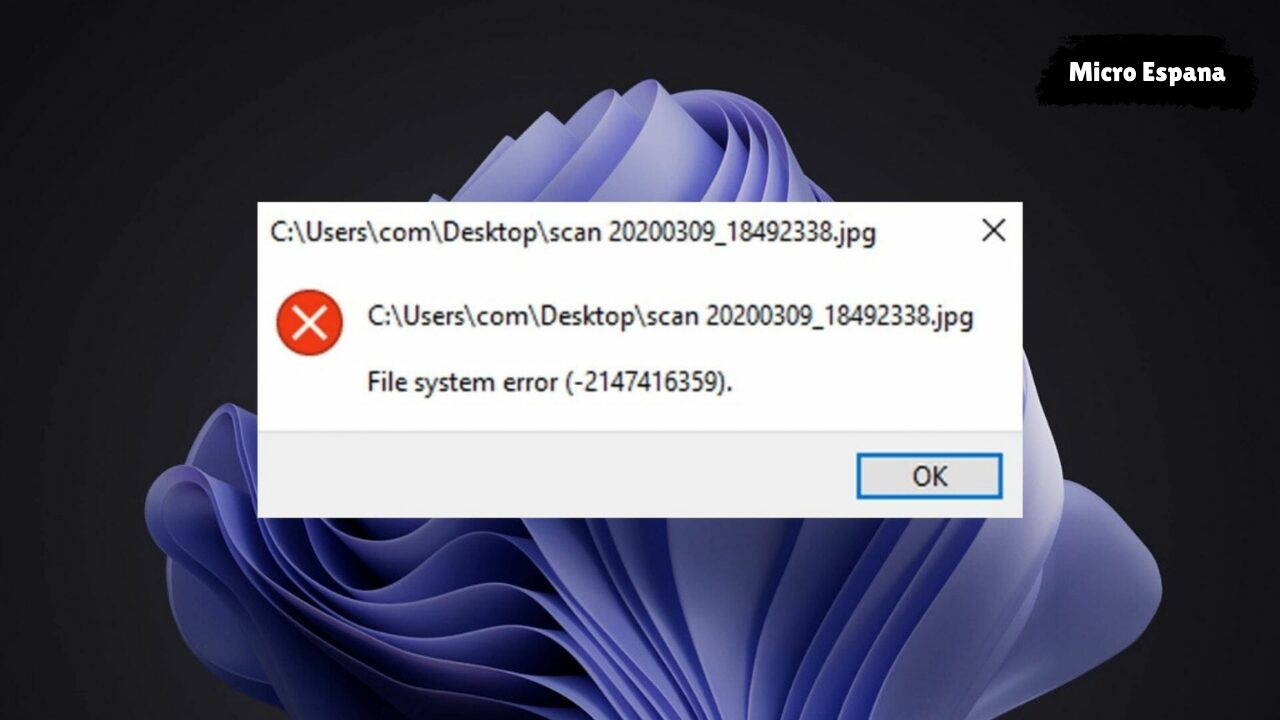
Uno de los errores más reportados en 2025 es que las actualizaciones de Windows 11 fallan, se cuelgan o no se instalan, con códigos como 0x80070002 o 0x800f081f. Causa principal: archivos corruptos o conexión inestable. Microsoft ha solucionado problemas relacionados con el representador de vídeo HDCP en KB5065789 (septiembre 2025), pero persisten en instalaciones nuevas.
Soluciones rápidas:
- Solucionador de problemas: Ve a Configuración > Sistema > Solución de problemas > Otros solucionadores > Windows Update. Ejecuta y reinicia.
- Limpieza de caché: En CMD como administrador, ejecuta:text
net stop wuauservren %systemroot%\SoftwareDistribution SoftwareDistribution.oldnet start wuauservReinicia y reintenta. - Descarga manual: En catalog.update.microsoft.com, busca el KB (ej. KB5066835) y descarga el .msu para tu arquitectura (x64).
Ejemplo: El error 0x80070002 se resuelve con limpieza de caché en 5 minutos, evitando reinstalaciones.
| Código | Causa | Solución |
|---|---|---|
| 0x80070002 | Archivos corruptos | Limpieza de caché |
| 0x800f081f | Componentes dañados | Solucionador de Update |
| 0x800705B4 | Servicios detenidos | Reiniciar wuauserv |
Pantallazos azules (BSOD): Diagnóstico y reparación
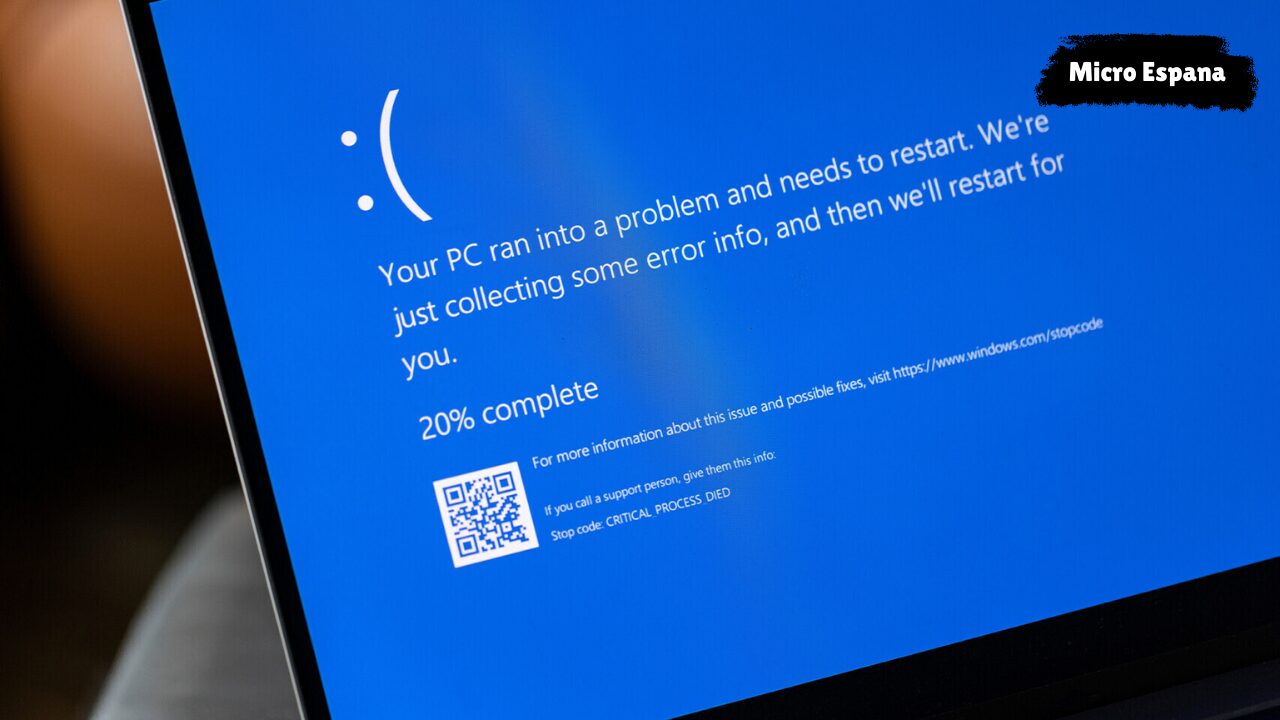
Los BSOD, como DRIVER_IRQL_NOT_LESS_OR_EQUAL o CRITICAL_PROCESS_DIED, indican fallos graves, a menudo por drivers o hardware. En Windows 11 24H2, KB5066835 (octubre 2025) corrigió errores en autenticación de tarjetas inteligentes.
Soluciones:
- Modo seguro: Reinicia con Shift + Reiniciar > Solucionar problemas > Opciones avanzadas > Configuración de inicio > 4 (Modo seguro). Desinstala drivers recientes en Administrador de dispositivos.
- CHKDSK para disco: En CMD de recuperación, ejecuta chkdsk C: /f /r.
- Diagnóstico de memoria: Busca “Diagnóstico de memoria” y ejecuta; reinicia para test.
Ejemplo: Un BSOD por driver NVIDIA se resuelve desinstalando en modo seguro y descargando desde nvidia.com.
Problemas de rendimiento: Lentitud y congelamientos
Windows 11 24H2 puede ralentizarse en hardware con 4 GB RAM o tras actualizaciones. KB5065789 (septiembre 2025) optimizó el Explorador de archivos.
Soluciones:
- Administrador de tareas: Ctrl + Shift + Esc > Inicio > Deshabilitar apps innecesarias (ej. Adobe Updater).
- Liberador de espacio: Busca “Liberador de espacio en disco” y limpia temporales.
- Restablecer PC: Configuración > Sistema > Recuperación > Restablecer este PC > Conservar archivos.
Ejemplo: Deshabilita 5 apps de inicio para reducir tiempo de arranque de 1 minuto a 20 segundos.
Errores de Microsoft Store y apps
Errores como 0x80073CF6 o “No se puede instalar” afectan la Store en Windows 11 24H2.
Soluciones:
- wsreset.exe: Windows + R > wsreset.exe > Enter (limpia caché).
- Reinstalar Store: En PowerShell como administrador:text
Get-AppxPackage *WindowsStore* -AllUsers | Foreach {Add-AppxPackage -DisableDevelopmentMode -Register "$($_.InstallLocation)\AppXManifest.xml"} - Actualizaciones: En Store > Perfil > Descargas y actualizaciones > Obtener actualizaciones.
Ejemplo: wsreset resuelve el 0x80073CF6 en 1 minuto, restaurando descargas.
Problemas de red y Wi-Fi
Errores como “Sin conexión” o desconexiones frecuentes en 24H2.
Soluciones:
- Solucionador de red: Configuración > Sistema > Solución de problemas > Otros solucionadores > Conexión a Internet.
- Restablecer red: Configuración > Red e Internet > Configuración avanzada > Restablecimiento de red (borra contraseñas Wi-Fi).
- Actualizar drivers: En Administrador de dispositivos, actualiza adaptadores de red.
Ejemplo: El restablecimiento de red corrige desconexiones en Wi-Fi 6.
Pantallazos azules y fallos de hardware
BSOD como “DRIVER_OVERRAN_STACK_BUFFER” o “MEMORY_MANAGEMENT” en 24H2.
Soluciones:
- Modo seguro: Reinicia con Shift + Reiniciar > Modo seguro y desinstala drivers.
- CHKDSK: En CMD: chkdsk C: /f /r.
- Diagnóstico de memoria: Busca “Diagnóstico de memoria” y ejecuta.
Ejemplo: CHKDSK repara sectores defectuosos en SSD, resolviendo MEMORY_MANAGEMENT.
Errores de impresoras y periféricos
Impresoras no detectadas o errores de drivers en 24H2.
Soluciones:
- Solucionador de impresoras: Configuración > Sistema > Solución de problemas > Otros solucionadores > Impresoras.
- Actualizar drivers: En Administrador de dispositivos, clic derecho en impresora > Actualizar.
- Restablecer impresora: En Configuración > Bluetooth y dispositivos > Impresoras y escáneres > Quitar dispositivo.
Ejemplo: El solucionador repara una HP no detectada tras KB5066835.
Consejos para 2025
- Mantén actualizaciones: Instala parches mensuales (KB5066835, octubre 2025).
- Respalda datos: Usa OneDrive antes de cambios.
- Modo seguro para diagnósticos: Úsalo para fallos de drivers.
- Migra a Windows 11: Si usas Windows 10, actualiza antes de octubre 2025.
- Herramientas de terceros: Usa CCleaner para limpiezas o Speccy para diagnósticos.
Ejemplo: Respalda en OneDrive y usa modo seguro para reparar un BSOD.
Conclusión
Los errores comunes de Windows 11 en 2025, como fallos de actualización (0x80070002), lentitud, BSOD y problemas de red, se resuelven con solucionadores nativos, comandos en CMD y restablecimientos. En 24H2, actualizaciones como KB5066835 corrigen muchos, pero mantén el sistema actualizado. Para usuarios en España, migra de Windows 10 antes de octubre 2025 para soporte continuo.
Preguntas frecuentes
¿Windows 11 es más estable que 10?
Sí, con parches hasta 2031.
¿Cómo soluciono errores de actualización?
Usa el solucionador o limpia caché con CMD.
¿Por qué mi PC es lento?
Deshabilita apps de inicio y libera espacio.
¿Qué hacer con BSOD?
Modo seguro y CHKDSK para diagnóstico.