








Guía de solución de problemas de Windows 11: cómo solucionarlos

En 2025, Windows 11 es el sistema operativo principal de Microsoft, con soporte hasta 2031, pero puede presentar problemas como fallos de actualización, errores de aplicaciones, lentitud o problemas de red, especialmente tras el fin del soporte de Windows 10 en octubre.
Esta guía detalla los problemas más comunes en Windows 11 (versión 24H2), cómo solucionarlos con herramientas nativas y de terceros, y consejos para usuarios en España para mantener el sistema estable y seguro. Fórmulas de Microsoft Excel para principiantes en 2025
Problemas comunes y soluciones
1. Actualizaciones de Windows no se instalan
Errores comunes: 0x80070002, 0x80073712, 0x800705B4.
Causas: Archivos corruptos, conexión inestable, espacio insuficiente.
Soluciones:
- Ejecutar el solucionador de problemas:
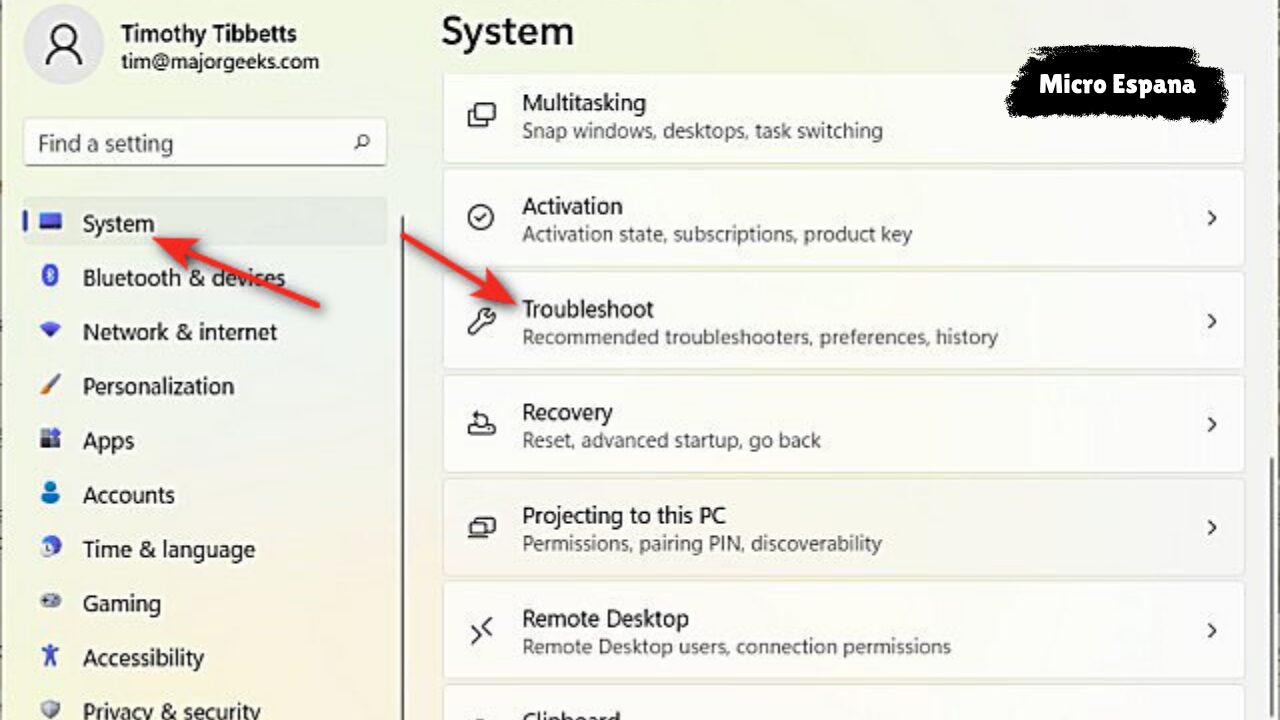
- Ve a Configuración > Sistema > Solución de problemas > Otros solucionadores.
- Selecciona “Windows Update” y sigue las instrucciones.
- Liberar espacio:
- En Configuración > Sistema > Almacenamiento, activa “Limpieza de archivos temporales” y elimina archivos innecesarios.
- Restablecer componentes de actualización:
- Abre CMD como administrador (Windows + X > Terminal (Admin)).
- Ejecuta:
net stop wuauserv net stop cryptSvc net stop bits net stop msiserver ren C:\Windows\SoftwareDistribution SoftwareDistribution.old ren C:\Windows\System32\catroot2 catroot2.old net start wuauserv net start cryptSvc net start bits net start msiserver - Reinicia y verifica actualizaciones.
- Descarga manual:
- Visita microsoft.com/es-es/software-download/windows11 y usa la herramienta de creación de medios.
Ejemplo: El error 0x80070002 se resuelve restableciendo SoftwareDistribution y reiniciando.
2. Sistema lento o congelado
Causas: RAM insuficiente, drivers antiguos, apps en segundo plano.
Soluciones:
- Optimizar inicio:
- Abre Administrador de tareas (Ctrl + Shift + Esc) > Inicio.
- Deshabilita apps no esenciales (por ejemplo, Adobe Updater).
- Actualizar drivers:
- Ve a Configuración > Windows Update > Actualizaciones avanzadas > Actualizaciones opcionales.
- Instala drivers de GPU y chipset.
- Liberar recursos:
- En Configuración > Sistema > Almacenamiento, usa “Sensor de almacenamiento” para limpiar temporales.
- Escanear sistema:
- Abre Seguridad de Windows > Protección contra virus > Escaneo completo.
Ejemplo: Un PC con 4 GB RAM se ralentiza; aumenta a 8 GB y desactiva apps de inicio.
3. Aplicaciones no funcionan o se cierran
Errores comunes: “La aplicación no responde”, error 0x80073CF6 (Store).
Causas: Apps corruptas, incompatibilidad, caché de Store.
Soluciones:
- Reparar o restablecer app:
- Ve a Configuración > Aplicaciones > Aplicaciones instaladas.
- Busca la app, selecciona Opciones avanzadas > Reparar o Restablecer.
- Reinstalar desde Microsoft Store:
- Abre Microsoft Store, busca la app y reinstala.
- Ejecutar en modo compatibilidad:
- Clic derecho en el ejecutable > Propiedades > Compatibilidad > Selecciona Windows 10.
- Actualizar Store:
- En Store, ve a Perfil > Descargas y actualizaciones > Obtener actualizaciones.
Ejemplo: Si Teams no abre, restablece desde Configuración y reinicia.
4. Problemas de red o Wi-Fi
Errores comunes: “Sin conexión”, “Wi-Fi desconecta”.
Causas: Drivers desactualizados, configuración de red errónea.
Soluciones:
- Solucionador de red:
- Ve a Configuración > Sistema > Solución de problemas > Otros solucionadores > Conexión a Internet.
- Actualizar drivers de red:
- En Administrador de dispositivos (Windows + X), busca adaptadores de red, clic derecho > Actualizar controlador.
- Restablecer red:
- Ve a Configuración > Red e Internet > Configuración avanzada de red > Restablecimiento de red.
- Nota: Esto elimina configuraciones Wi-Fi; guarda contraseñas.
- Verificar firewall:
- En Seguridad de Windows > Firewall y protección de red, permite apps bloqueadas.
Ejemplo: Si Wi-Fi se desconecta, restablece la red y actualiza drivers desde el fabricante (por ejemplo, Intel).
5. Pantallazos azules (BSOD)
Errores comunes: DRIVER_IRQL_NOT_LESS_OR_EQUAL, CRITICAL_PROCESS_DIED.
Causas: Drivers corruptos, hardware defectuoso.
Soluciones:
- Iniciar en modo seguro:
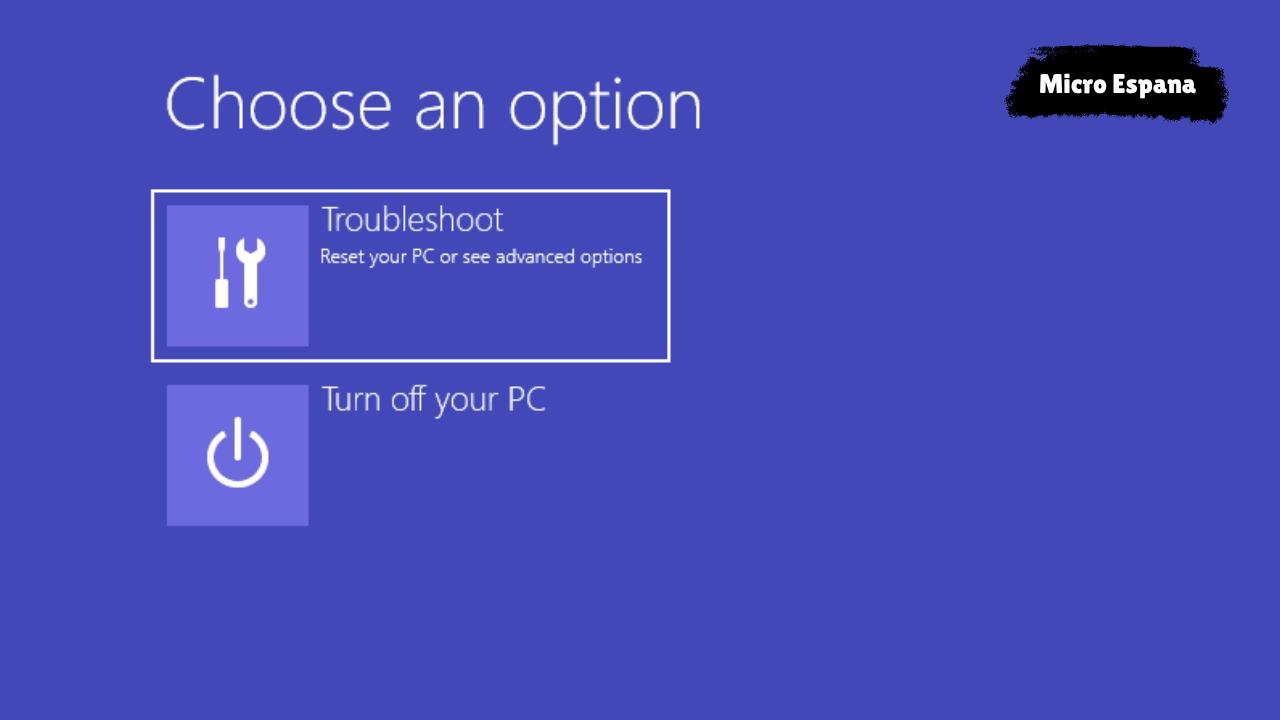
- Reinicia, presiona F8 o entra desde Configuración > Sistema > Recuperación > Inicio avanzado.
- Selecciona “Modo seguro con funciones de red”.
- Verificar hardware:
- Usa Diagnóstico de memoria de Windows (busca en barra de búsqueda) para RAM.
- Ejecuta
chkdsk C: /f /ren CMD para disco.
- Actualizar drivers:
- Descarga drivers desde el fabricante (NVIDIA, AMD, Intel).
- Restaurar sistema:
- Busca “Restaurar sistema”, selecciona un punto de restauración anterior.
Ejemplo: Un BSOD por un driver NVIDIA se resuelve actualizando desde nvidia.com.
6. Microsoft Store no funciona
Errores comunes: 0x80073CF6, no carga.
Causas: Caché corrupto, cuenta Microsoft.
Soluciones:
- Limpiar caché:
- Presiona Windows + R, escribe
wsreset.exey ejecuta.
- Reinstalar Store:
- Abre PowerShell como administrador (Windows + X).
- Ejecuta:
Get-AppxPackage *WindowsStore* -AllUsers | Foreach {Add-AppxPackage -DisableDevelopmentMode -Register "$($_.InstallLocation)\AppXManifest.xml"}
- Verificar cuenta:
- En Configuración > Cuentas, asegura que tu cuenta Microsoft esté activa.
Ejemplo: Si Store no abre, wsreset.exe limpia el caché y restaura acceso.
Herramientas nativas de solución de problemas
Windows 11 incluye solucionadores automáticos en Configuración > Sistema > Solución de problemas > Otros solucionadores:
- Windows Update: Corrige errores de actualización.
- Conexión a Internet: Resuelve problemas de Wi-Fi/ethernet.
- Reproducción de audio: Soluciona fallos de sonido.
- Energía: Optimiza consumo y rendimiento.
Ejemplo: El solucionador de audio repara un altavoz silenciado tras una actualización.
Consejos para 2025
- Mantén Windows actualizado: Instala parches mensuales (por ejemplo, KB5041585 de septiembre 2025).
- Usa Windows Defender: Escanea semanalmente en Seguridad de Windows.
- Respalda datos: Antes de actualizaciones, usa OneDrive o Copia de seguridad y restauración.
- Migra de Windows 10: Antes de octubre 2025, actualiza a Windows 11 para soporte.
- Prueba herramientas de terceros: CCleaner (~€20/año) para limpiezas avanzadas.
Ejemplo: Respalda documentos en OneDrive antes de instalar 24H2 para evitar pérdidas.
Solución de problemas avanzada
Si los métodos fallan:
- Restablecer Windows:
- Ve a Configuración > Sistema > Recuperación > Restablecer este PC.
- Elige “Conservar archivos” o “Eliminar todo”.
- Reinstalar Windows 11:
- Descarga la ISO desde microsoft.com/es-es/software-download/windows11.
- Crea un USB booteable con Rufus (rufus.ie).
- Contactar soporte: Usa la app “Obtener ayuda” o support.microsoft.com.
Ejemplo: Un restablecimiento con “Conservar archivos” corrige un sistema lento sin perder datos.
Conclusión
Solucionar problemas en Windows 11 implica usar herramientas nativas como el Solucionador de problemas, PowerShell y Restaurar sistema, junto con actualizaciones de drivers y respaldos. En 2025, con el fin de soporte de Windows 10, mantén Windows 11 actualizado (24H2) y usa OneDrive para datos. Si los problemas persisten, restablece o reinstala. Estas soluciones aseguran un sistema estable y seguro.
Preguntas frecuentes
- ¿Cómo soluciono errores de actualización?
Usa el Solucionador de Windows Update o restablece componentes en CMD. - ¿Por qué mi PC está lento?
Verifica RAM, desactiva apps de inicio y escanea con Defender. - ¿Qué hacer si Store no funciona?
Ejecutawsreset.exeo reinstala con PowerShell. - ¿Cómo evito pantallazos azules?
Actualiza drivers y verifica hardware conchkdsk.